
Math Problems in a Clean, Readable Format
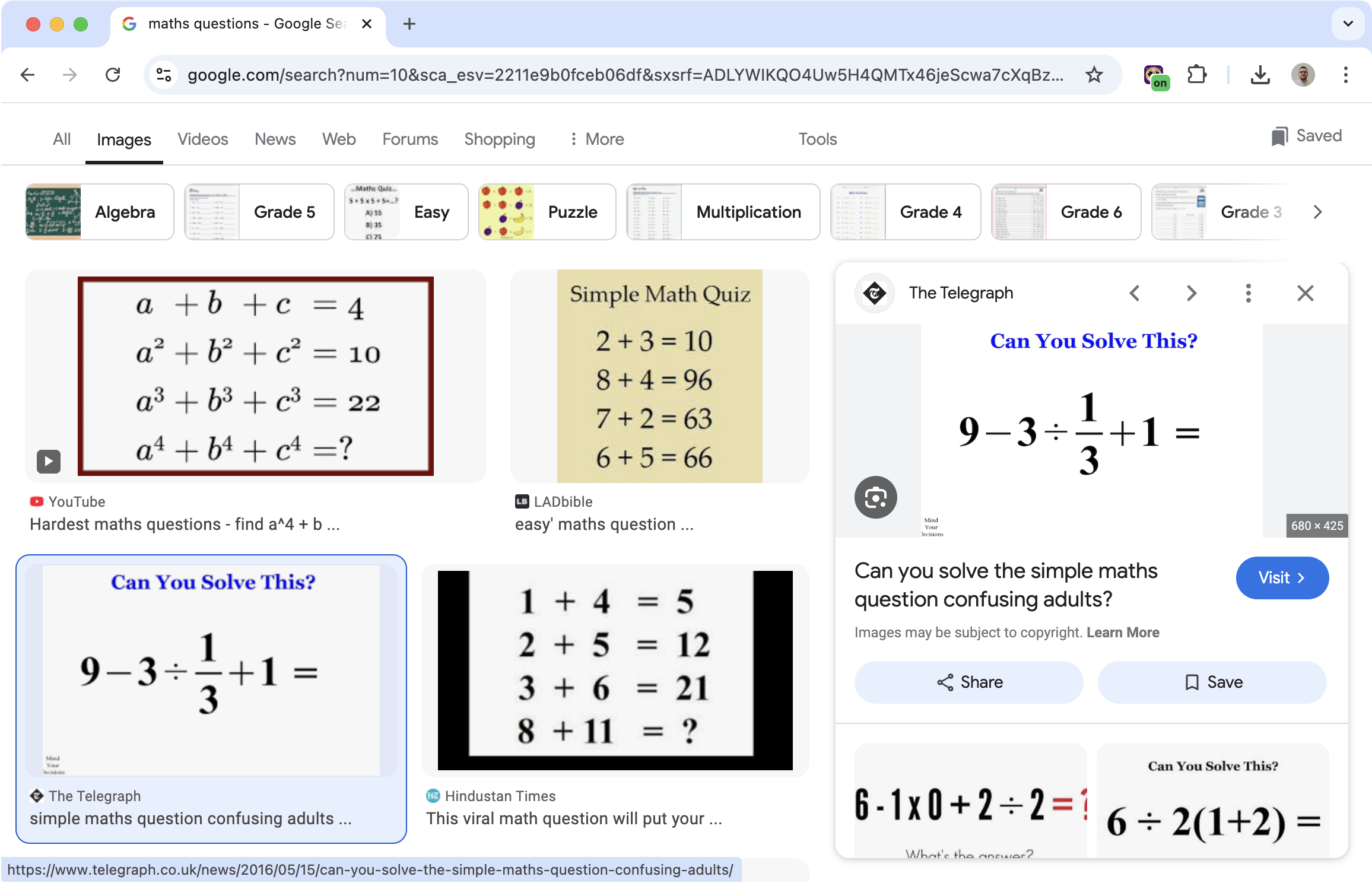
Math problems on websites and PDFs can be hard to read. Small fonts, cluttered layouts, distracting elements around the problem.
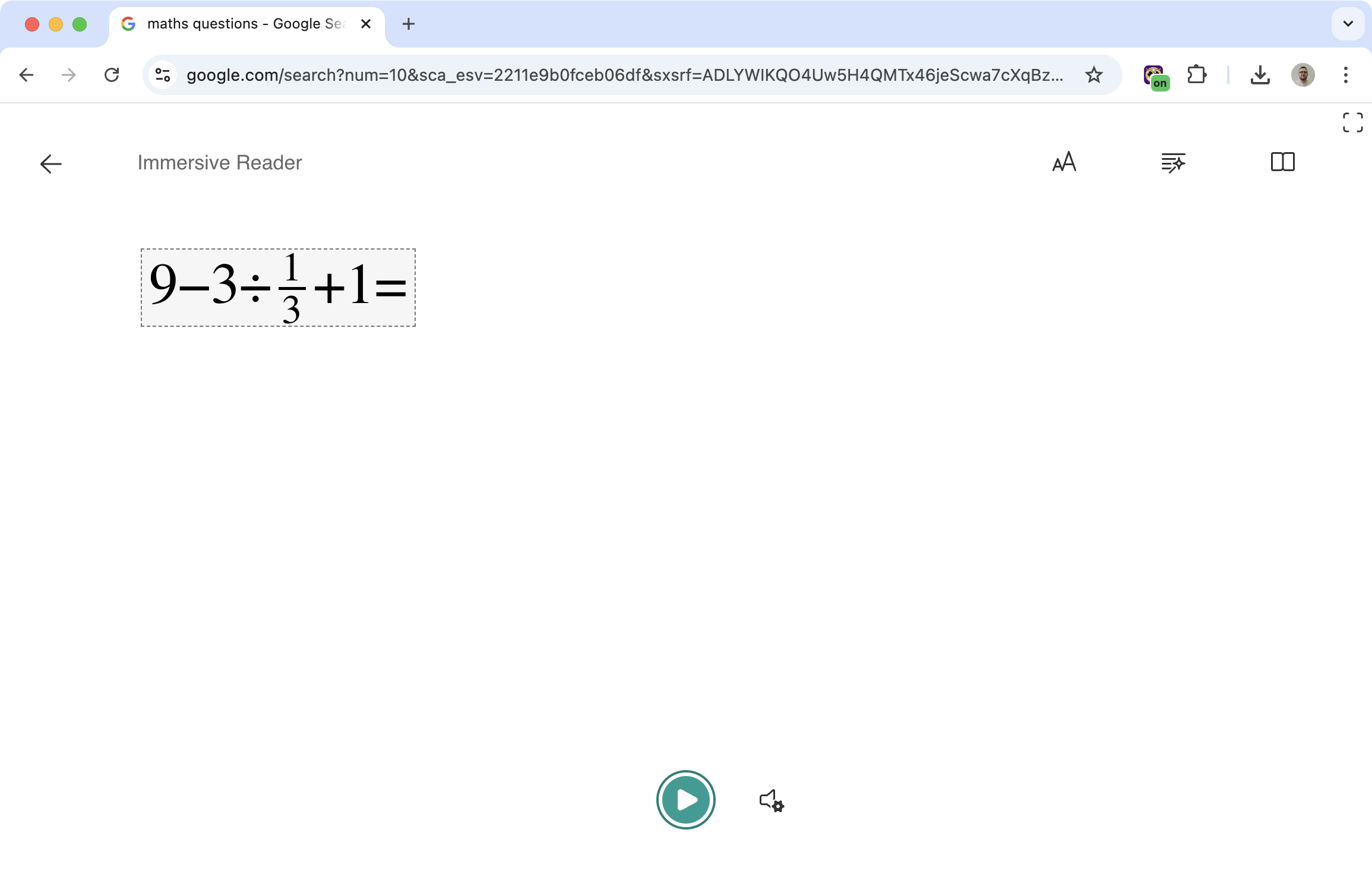
Maths Reader lets you select a problem and open it in Immersive Reader. Clean background, adjustable font, option to hear it read aloud.
Related features
- Text to Speech - Have math problems read aloud for better understanding.
- Immersive Reader - Open math problems in a clean, focused reading view.
- Font Sizes - Make small math text larger and easier to read.
How It Works
- Click the Maths Reader tool in Helperbird
- Select the area containing the math problem
- Helperbird extracts the content
- The problem opens in Immersive Reader
From there, you can have it read aloud, adjust the font size, change colors, or just read it in a distraction-free view.
Why This Helps
Isolate the problem: Remove everything except what you're trying to solve.
Hear it read aloud: Sometimes hearing a problem helps you understand it better than just reading.
Customize the display: Make text bigger, change colors, whatever helps you focus.
Accessibility: Useful for dyslexia, dyscalculia, or anyone who finds standard math displays hard to parse.
Who Uses This
Students working through math homework or tests.
Teachers helping students with reading difficulties access STEM content.
Anyone who finds math problems on websites hard to read in their original format.
Is This Free?
Yes. Maths Reader is free in Helperbird.
