
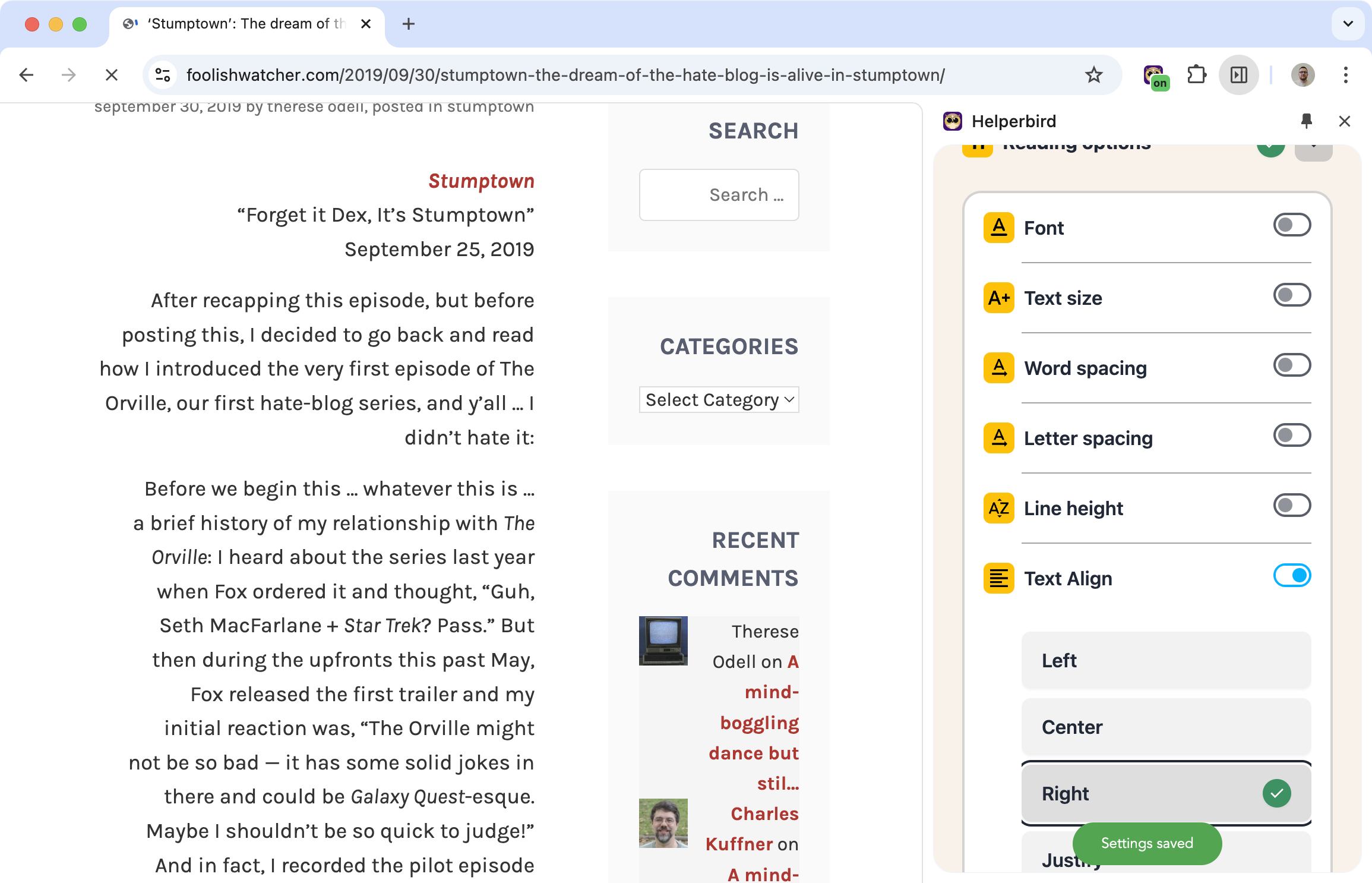
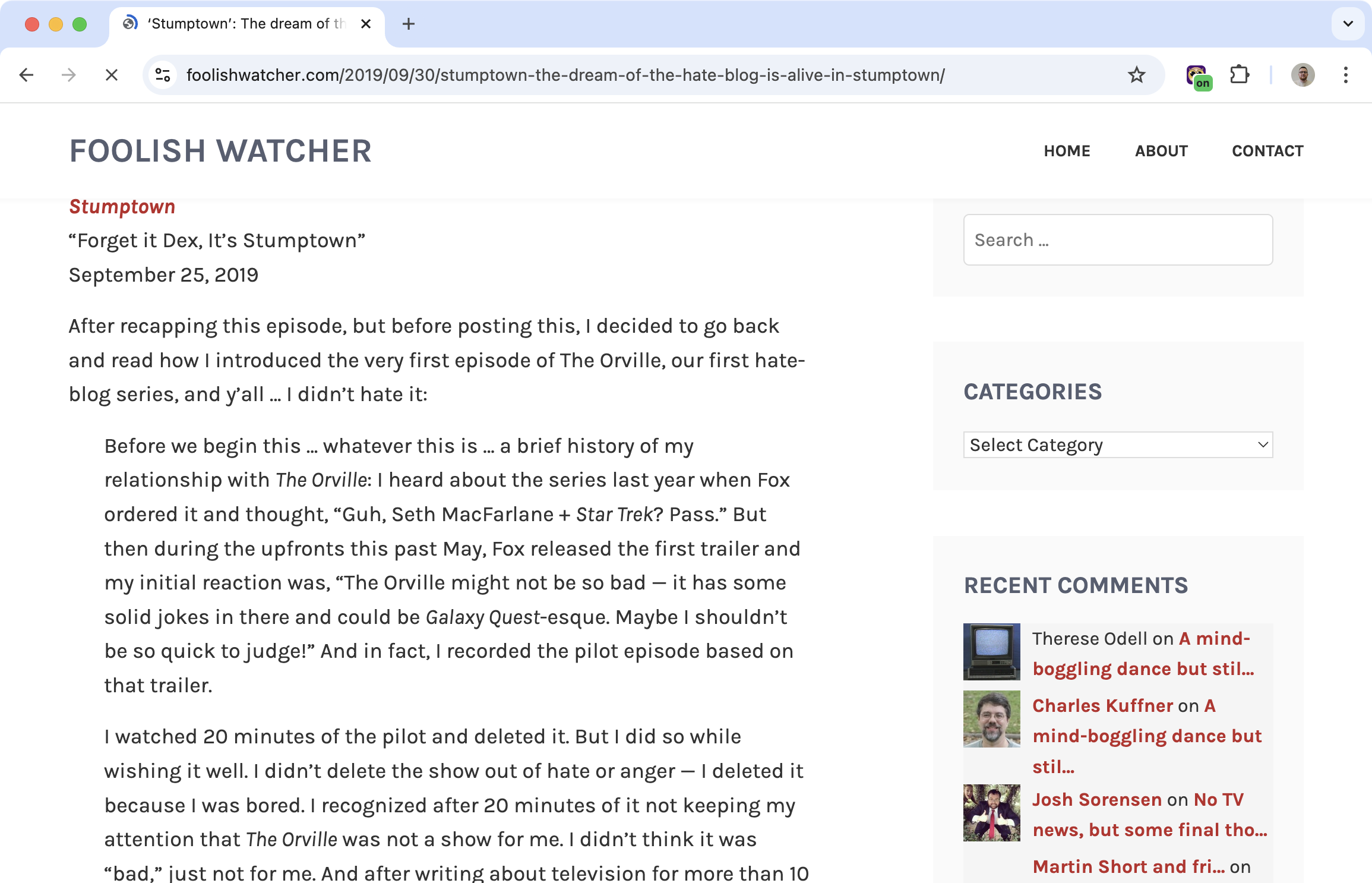
Align Text the Way You Prefer
Some people read left-aligned text more easily. Others prefer justified text with clean edges on both sides. Some websites force one alignment that doesn't work for you.
Text alignment lets you override the website's choice. Left, right, center, justified - pick what works best for how you read.
Learn how to change text alignment
Related features
- Paragraph Width - Adjust column width alongside alignment for a customized reading layout.
- Font Size Control - Larger text benefits from proper alignment to maintain readability.
- Custom Colors - Combine alignment changes with color customization for optimal visual comfort.
Your Options
Left-aligned: Text starts at the left edge, ragged on the right. Most common for body text.
Right-aligned: Text starts at the right edge. Used in some languages and designs.
Centered: Text is centered on each line. Good for headings, awkward for paragraphs.
Justified: Text is spaced to align with both left and right edges. Clean look, but can create awkward spacing.
Why Alignment Matters
For many readers, especially those with dyslexia, left-aligned text is easier to track because the ragged right edge creates a varied pattern that helps locate each line.
Justified text looks neat but can create uneven spacing that makes reading harder.
It's personal. Try different alignments to see what works for you.
Who Uses This
People with dyslexia who find certain alignments easier to read.
Anyone who has a preference that most websites don't accommodate.
Is This Free?
Text alignment is a Pro feature in Helperbird.
